Housekeeping and Maintenance Staff Creation
The Housekeeping and Maintenance Staff Creation tab allows users to create records of housekeeping and maintenance staffs at the property.
Breakpoint: 70010 - Staff Setup (Housekeeping - Housekeeping)
The process of creating records for maintenance and housekeeping personnel is the same. However, some of the fields required to create records in the two tabs (Housekeeping Staff and Maintenance Staff) might differ.
Perform the following steps to create a housekeeping or maintenance staff record:
Navigate to Settings à Housekeeping and Maintenance Staff Creation.
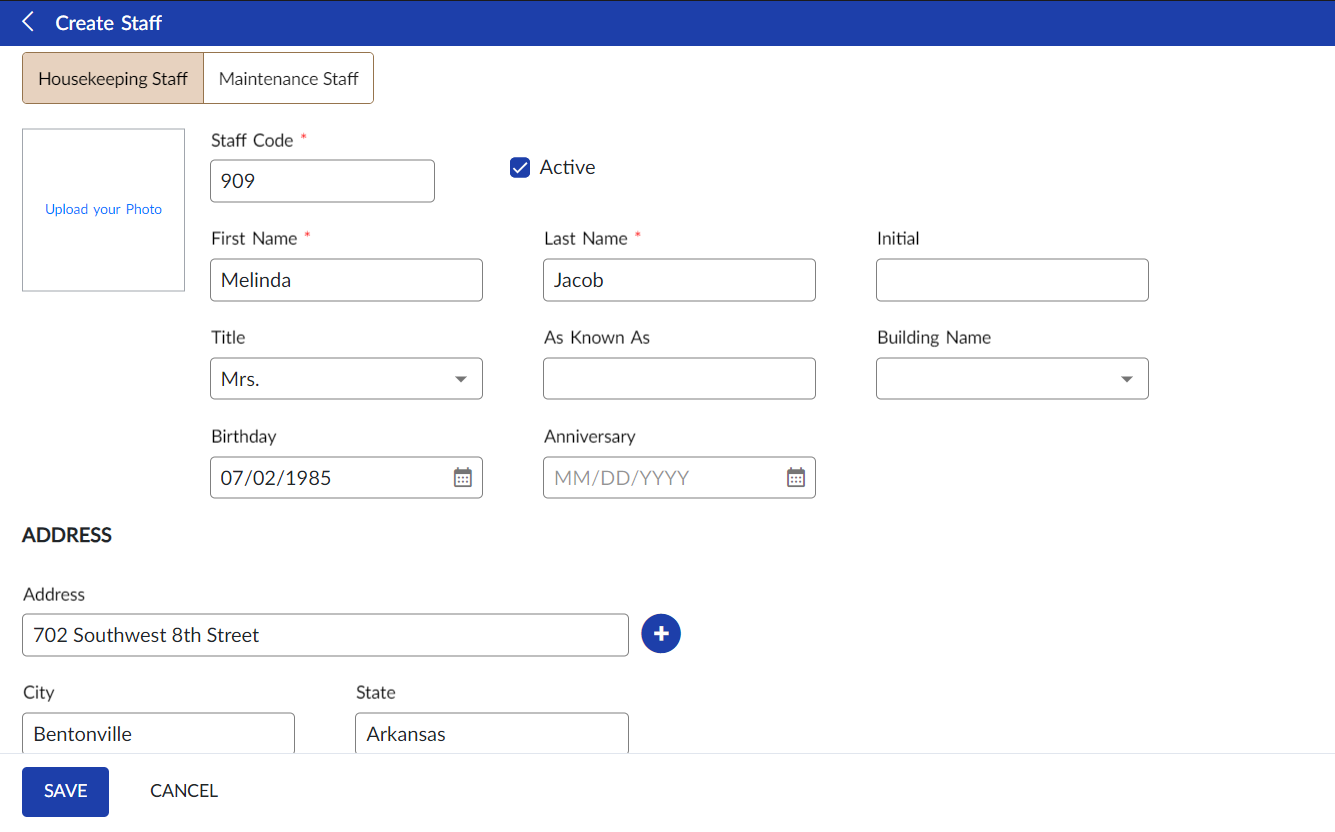
Click Create Staff. By default, The Create Staff screen appears, and the Housekeeping Staff tab is selected. To create a maintenance personnel, select the Maintenance Staff tab.
Refer to the following table and fill in the fields:
|
Field |
Description |
|---|---|
|
Staff Code |
A unique code to identify the housekeeping or maintenance staff. Up to 15 alphanumeric characters, special characters, or numbers are supported. |
|
First Name |
The first name of the housekeeping or maintenance personnel. Up to 30 words are supported. |
|
Last Name |
The last name of the housekeeping or maintenance personnel. Up to 30 words are supported. |
|
Initial |
The initial of the housekeeping or maintenance personnel. Up to 2 alphanumeric characters are supported. This field is applicable only when creating a housekeeper. |
|
Title |
Select the forms-of-address that precedes the staff name from the available options in the drop-down list. This field is applicable only when creating a housekeeper. |
|
As Known As |
The other name or nickname of the housekeeper, if any. Up to 15 alphanumeric characters or numbers are supported. This field is applicable only when creating a housekeeper. |
|
Building Name |
Select a building name from the drop-down list that the user will have access to. |
|
Profile Photo |
The profile picture of the housekeeping or maintenance staff. Users can upload or drag and drop any image that is less than 5 MB in JPEG, TIFF, PNG, or GIF format. When a user uploads an image with an incorrect size or format, the message, Photo Size Should Not Exceed 5MB and Please Use Valid Photo Format will be displayed. The user can also modify or delete the uploaded profile picture. |
|
Birthday |
The date of birth of the housekeeper. This field is applicable only when creating a housekeeper. |
|
Anniversary |
The wedding anniversary date of the housekeeper. This field is applicable only when creating a housekeeper. |
|
Housekeeper Type |
Select the preferred housekeeper type from the following options displayed:
This section will only appear when the Assign Housekeeping Inspector flag in the System Defaults screen (Settings à System Setup à Other System Switches / Defaults) is enabled. |
|
Third Party |
Select the option to indicate that the maintenance staff is part of the contract service. This field is applicable only when creating a maintenance staff. |
|
Active |
Select the option to indicate that the record created for the housekeeping or maintenance staff is active and that the staff is currently working in the property. |
|
Address |
The residential address of the housekeeper or the maintenance staff. Up to 255 words are supported. |
|
Contact |
The home, official, or personal contact number and email ID of the housekeeper or maintenance staff. |
|
Notes |
A general information about the housekeeper or maintenance staff. Up to 100 words are supported. |
|
Notification Method |
The mode through which the housekeeper or maintenance staff prefers the property to communicate. The following options are available: Don’t Send, Via Cell, Via Email, and Send to all. |
|
Profile Info |
|
|
Seniority |
Select the preferred seniority position for the housekeeper from the list of active seniority positions. These seniority codes are created in the Housekeeping Seniority screen. This field is applicable only when creating a housekeeper. |
|
Shift Room Points |
The total number of hours the housekeeping personnel has worked in the assigned shift. This value is calculated based on the values entered in the Stayover Points and Check Points fields in the Room Definition screen. Assume the stayover and checkout points configured for rooms 101KS, 101KNS, and 102KS are as follows:
If Housekeeper A is assigned to two rooms, 101KNS and 101KS, during the guest’s stay at the hotel, then 1.00 will be the total points earned. Similarly, if Housekeeper B is assigned to room 102KS after the guest checks out, then 2.00 will be the total points earned. This functionality helps users ensure that work is distributed among all housekeepers and no single housekeeper is overloaded. |
|
Preferences |
The preferences of the housekeeper. This field is applicable only when creating a housekeeper record. |
|
ID Number |
A unique 4-digit number that is used to identify the housekeeper. The field will be displayed only when the Mobile Housekeeping field under the Custom Housekeeping section of the Housekeeping Default screen is enabled. This field is applicable only when creating a housekeeper record. |
|
Schedule Info |
|
|
Days |
Select the working days of the housekeeper. This field is applicable only when creating a housekeeper. |
|
Housekeeping Section |
The housekeeping department in which the housekeeper works. This field is applicable only when creating a housekeeper record. |
|
Labor Rates |
The records of categories created in the Maintenance Categories screen under Maintenance Setup menu are displayed in the grid. The user can configure the labor charges (per hour) for each category and select the Qualified field to indicate whether the maintenance staff is qualified to work in that category. This field is applicable only when creating a maintenance staff record. |
Click Create. The record for the staff is created and displayed in the grid.
Users can also perform the following actions in the Staff Setup screen:
-
Modify details in the staff record using the Edit icon.
-
Delete the staff record using the Delete icon.
-
Search for a maintenance staff or housekeeper record using the staff code or name.